

5 Things You Didn’t Know Your Computer Can Do
- learnit9035
- Jul 18, 2021
- 3 min read
The latest version of the Windows operating system (Windows 10) is packed full of features . Even so, you might be surprised at how many of these features go unused.
Some may not be intuitive to find or are simply unheralded features. Others might have been meant for a specific purpose but have value in other areas as well.
Let’s take a look at some of these awesome tips and tricks.

Windows Tips and Computer Tricks
Here is a list of TOP 5 things you didn’t know your computer can do
In our daily IT works we use our Windows and to make the things easier and simplest for you we are here with top 5 things that you should apply now and make the tasks easy.
Allright Let's have a look on these all
GAME SCREEN RECORDER

Meant to be used as a way to record gaming sessions this hidden recording tool can also be used to record other activities/applications.
You can create a how-to video for posting on a blog video, an easy way to send someone instructions and so on.
You can Access the Game Bar (Windows key + G) and click on the red button to start recording.
2. Hidden Show Desktop Button

There are always some hidden tricks you didn’t know Windows could do. If not hidden, then at least difficult to find.
The show desktop button is situated on the far right side of the Windows taskbar. It’s thin, so finding it isn’t exactly intuitive. Once you do click on it, all open windows will be minimized to reveal the desktop.
There’s also a peek feature you can enable by right-clicking on the taskbar and choosing Taskbar settings. Once the option is turned on, you can hover your mouse over that small area/button to give a preview of the desktop.
3. Save Websites to the Start Menu
The Windows 10 Start Menu can be customized to easily find what you’re looking for.
While you may already be accustomed to moving around tiles and changing their size, there is another item you can add that isn’t an application – a favorite website.

To do so, bring up the Microsoft Edge browser, browse to the desired site, click on the three-dotted menu and choose Pin this page to Start. A tile will appear on the menu for the website.
4. Cool Things Cortana Can Do
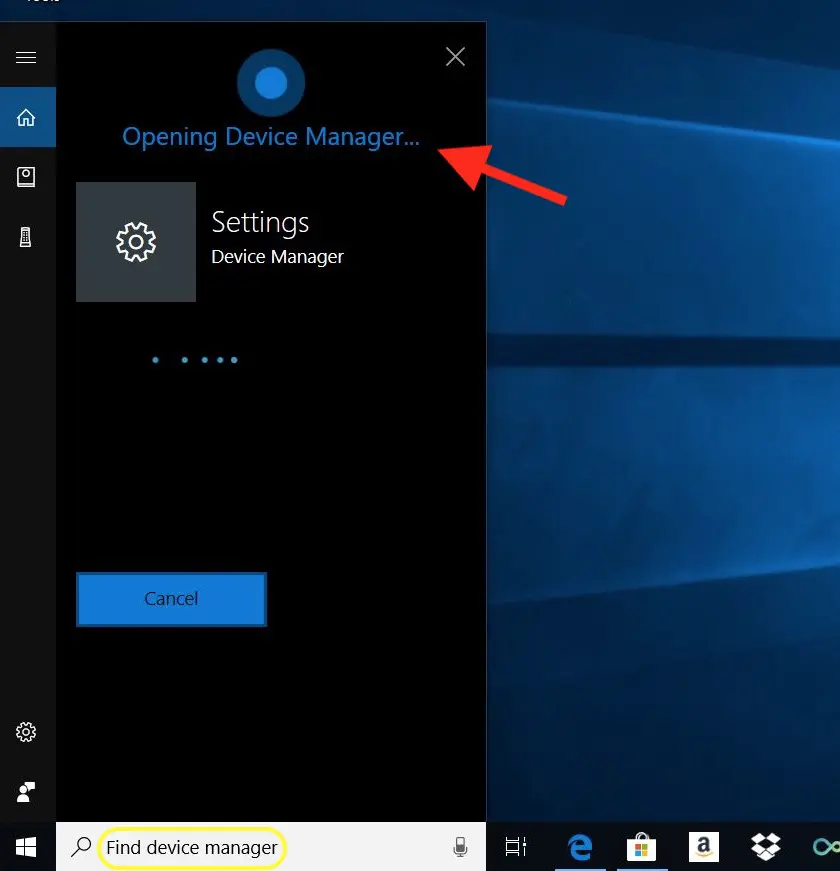
Cortana is a voice-activated personal assistant – similar to Alexa or Siri. The name (and voice) comes from a beloved AI (hologram) character from the popular Halo game series.
There are many activities that Cortana can assist you with – searching, setting reminders, controlling smart home devices, checking the weather and so on. You can even download skills for your Alexa device that allows it to open up Cortana (and vice versa).
Though not exactly a hidden gem – it’s a well-advertised feature – there are probably a lot of ways you’ve not thought to use Cortana. Don’t be afraid to experiment.
5. Maximize Your Laptop’s Battery

If you’re on the go, the last thing you want is for your laptop’s battery to run out while you’re using it. You won’t always have a way to plug in somewhere, so it might be wise to conserve that battery as much as you can.
The Battery Saver feature in Windows 10 (found easily via the taskbar’s search box) allows the system to scale back on usage once a certain threshold is hit (let’s say battery life of 20%). There are other settings and tips in this area to tweak as well.
5. Focus Assist to Minimize Interruptions

When you’re working (or playing) you likely find constant notifications a distraction. To help alleviate this, there is Windows Focus Assist. The feature is meant to filter the type of notifications you receive – thus allowing you to stay more focused.
You can customize its settings by going into Start, Settings, System and then click on Focus assist (or just search for it). This area will allow you to set priorities and create rules – for things such as setting timeframes that you wish not to be disturbed.
Thanks For Your Reading
Follow us for More
Subscribe us Enter Your Gmail below to get regular updates
Follow us on our Social Media Platforms


Comments